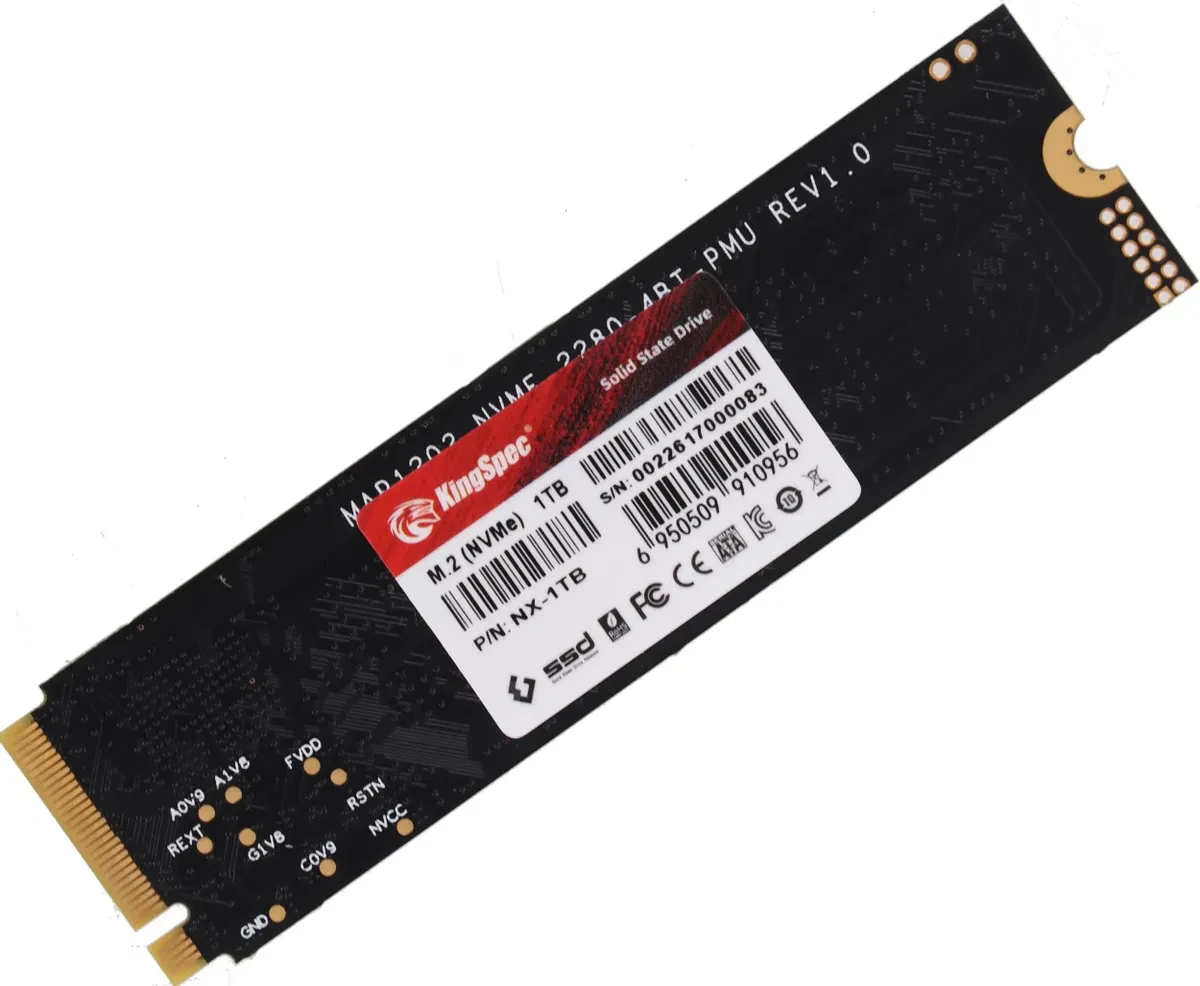
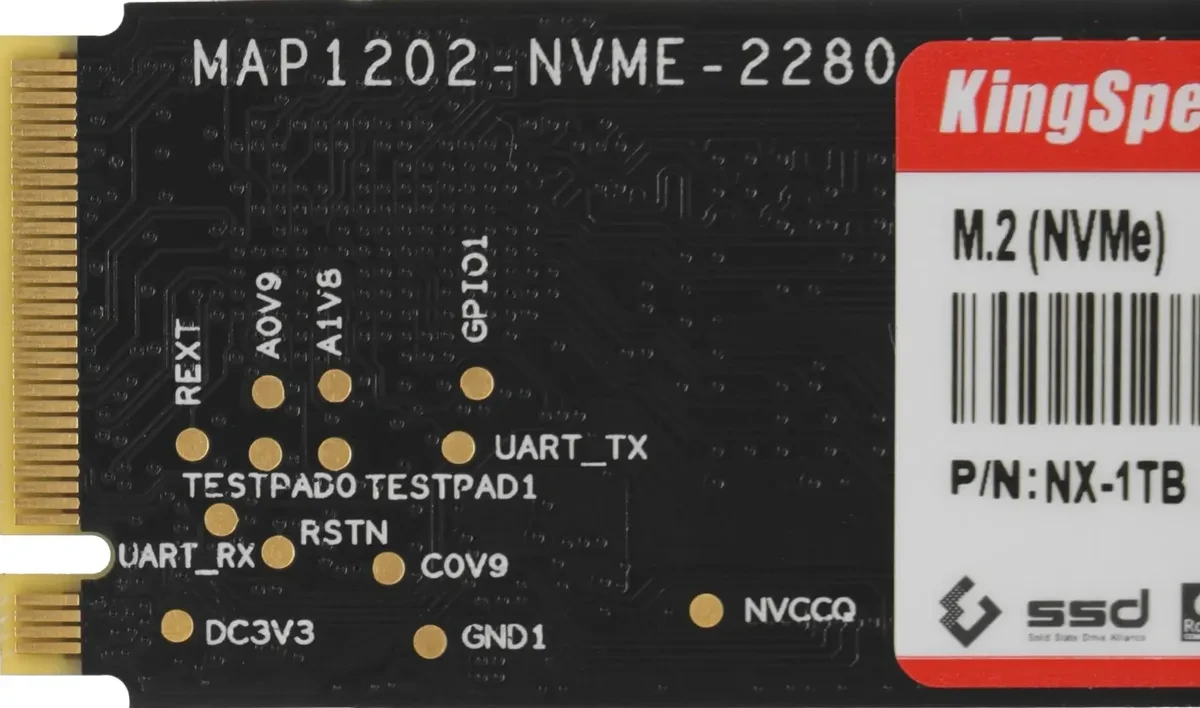
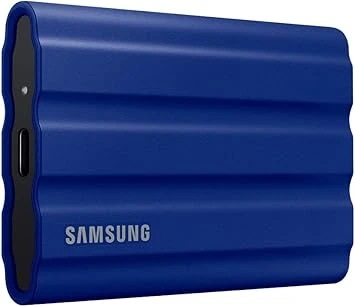
The KINGSPEC NX-1TB 1TB SSD delivers fast system startup, smooth application performance, stable read and write speeds, and saves time when processing files. It's essential for speeding up your computer and ensuring reliable data storage.
5 Basic Rules for Choosing an SSD Drive
Choosing an SSD isn't just about buying the "fastest" one; it's about finding the right balance of speed, reliability, and compatibility with your computer. Learn what affects system performance and what's truly important for your build.
- Check compatibility. Make sure your motherboard supports the required format: SATA, M.2 SATA, or M.2 NVMe and PCIe version (3.0/4.0/5.0). If the interface doesn't match, the drive simply won't work.
- Choose an SSD that best suits your needs in terms of performance. For office work, a budget NVMe drive is sufficient, but for gaming and heavy-duty applications, consider models with a higher speed threshold and a faster controller—you'll immediately notice the difference.
- Pay attention to the NAND flash type. TLC is more stable and durable, while QLC allows for higher storage density if you need a lot of space. For frequent game launches, projects, and large files, TLC is better—it's less sensitive to stress.
- Choose models with DRAM or HMB for stable performance. DRAM drives process data faster and experience less performance degradation during everyday tasks. HMB is an affordable compromise for budget-conscious builds.
- Pay attention to the TBW (the amount of data the SSD can handle over its lifespan). For typical workloads, 150–300 TBW is sufficient, but if you're constantly writing data, it's better to choose models with a longer lifespan and a reliable controller (Phison, Silicon Motion, Samsung, etc.).
The M.2 2280 form factor delivers maximum performance, low power consumption, and compatibility with most modern systems.
The PCIe 3.0 x4 interface offers high bandwidth, allowing the drive to operate noticeably faster and ensuring comfortable operation in speed-intensive applications.
With over 1TB (1024GB) of SSD capacity, you can store all your important files, media, and games while enjoying high performance and instant loading of even heavy applications.
3D TLC memory enables 3-bit data storage per cell, ensuring high speed and long lifespan. Efficient storage management on the chip allows for a large-capacity SSD in a compact format, making this device an excellent choice for both everyday use and gaming.
NVMe support delivers significantly faster SSD performance, unlocking the full performance of your drive and accelerating application launches.
7 Expert Tips: How to Avoid SSD Problems
Don't rush to buy a new drive if something goes wrong. We've compiled tips from experienced users that will help you avoid problems proactively or resolve them with simple steps—without repairs, service centers, or running around to stores.
- 1. If speed has dropped and your SSD seems to be slowing down , check to see if the drive is completely full of files. Leave at least 10–20% free space—this will ensure the drive continues to operate quickly and without microlags.
- 2. If your SSD is running hotter than expected, install a small heatsink or thermal pad. This typically drops the temperature by 10-20 degrees, and the speed drops no longer.
- 3. A common installation issue is that the computer doesn't recognize the SSD, or doesn't recognize it correctly. Check the connector (SATA or M.2, PCIe or SATA-M.2) and whether the correct mode is enabled in the BIOS. A couple of minutes and the system will usually recognize the drive.
- 4. Many drives lose speed when copying large amounts of data. If you're still choosing a drive, look for models with a DRAM buffer or HMB support. If you've already purchased one, simply avoid filling it completely and copy large amounts in chunks.
- 5. If the system takes a long time to boot or the disk appears only occasionally, the problem can usually be solved by updating the BIOS and drivers, as well as enabling AHCI mode. This will help restore normal boot speeds.
- 6. If cloning fails during system transfer, proven programs like AOMEI, Macrium, or proprietary Samsung/Kingston utilities work best. Disable BitLocker before cloning.
- 7. When the system is excessively noisy when using an SSD , it's not a malfunction, but rather active background processes in the operating system. By disabling unnecessary indexing and synchronization, you'll notice the fans will become quieter.

 English
 Arabic